Everything you need to know about email backups
Whether you're considering transferring your hosting service to us, or just concerned about security or compliance, it's important to know how to back up your emails.
Before you can make an effective plan, you'll need to understand a few important points about email hosting. This guide will take you step by step through the process of identifying how your email accounts are set up, creating your first local backup, configuring your mail client (email program) to use the best settings for your needs, and setting up secure encrypted cloud backups.
Contents
Mail clients
A 'mail client' is the program you use to send and receive emails. The most popular choices are Microsoft's Outlook, and Mozilla's Thunderbird. Account settings are very similar in all mail clients, but the exact phrasing of settings might differ. The first step in backing up your emails in determining which version of your mail client you're using.
Outlook
Take a look at the screenshots below to determine which Version of Outlook you're using.
Outlook 2010
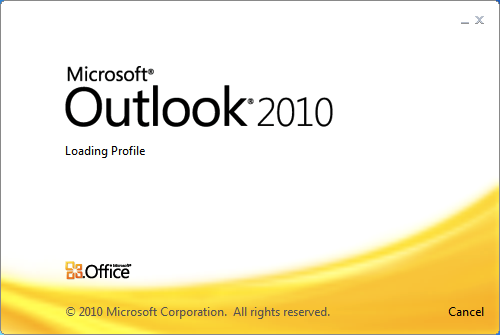
If you see this when you start Outlook, you're using Outlook 2010
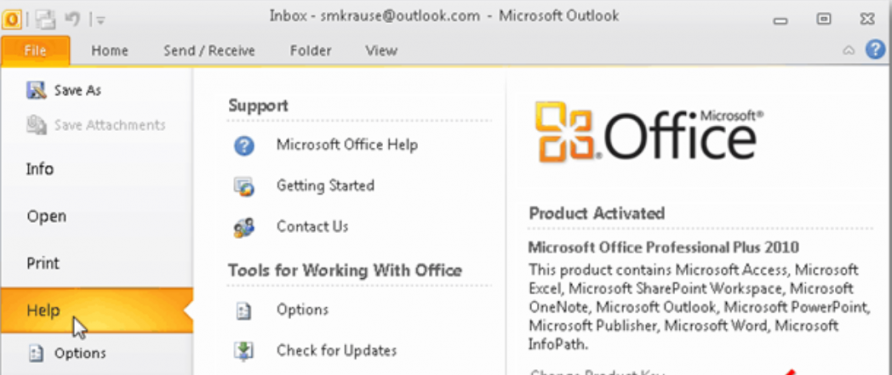
Click File in the menu at the top, then click Help. You should see Microsoft Office then the version name, and then 2010.


Outlook 2013 and 2016
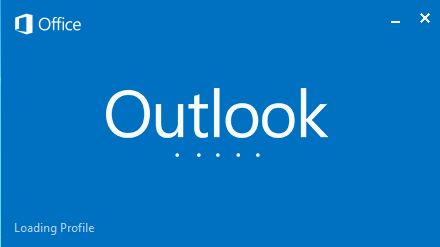
If you see this when you start Outlook, you may be using Outlook 2013 or 2016

Outlook 2013


